
Word to Excel Converter
Preserves the original order of tables + text. Runs locally in your browser (privacy-friendly). Download starts only when you click.
Drop your DOCX file here
or click to browse • Supported: .docx (browser-based)
Tip: if your Word file is “.doc” (old format), it must be saved as “.docx” first for browser conversion.
Convert Word to Excel Online (Fast, Accurate, Free)
With this converter, turning Word documents into Excel spreadsheets is quick and reliable. The tool extracts tables and text from your Word file and maps them into Excel rows and columns, keeping your data structured and easy to edit.
Everything happens in your browser, so there’s no software installation and your files remain on your device. You simply upload your .docx file, click Convert, and download the ready-to-use Excel spreadsheet when it’s done.
This method ensures your tables, columns, and text order stay intact, making data analysis, reporting, or any spreadsheet work smoother and faster.
How to Convert a Word Document to Excel
Convert Word files into structured Excel spreadsheets in a few simple steps. All tables and text remain in their original order, ready for editing or analysis:
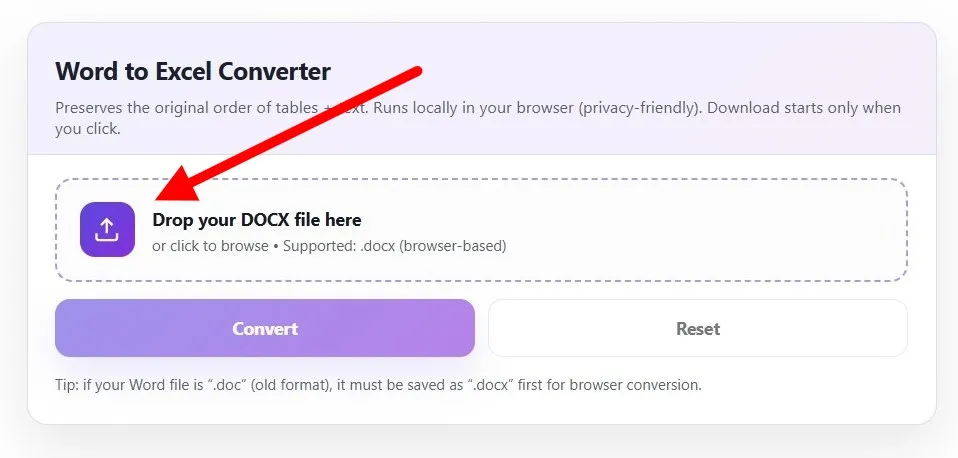
- Upload Your Word File
- Drag and drop your
.docxfile or click to browse your device. - Older
.docfiles must first be saved as.docx. - Your file remains in your browser for complete privacy.
- Drag and drop your
- Convert Word Tables into Excel Columns
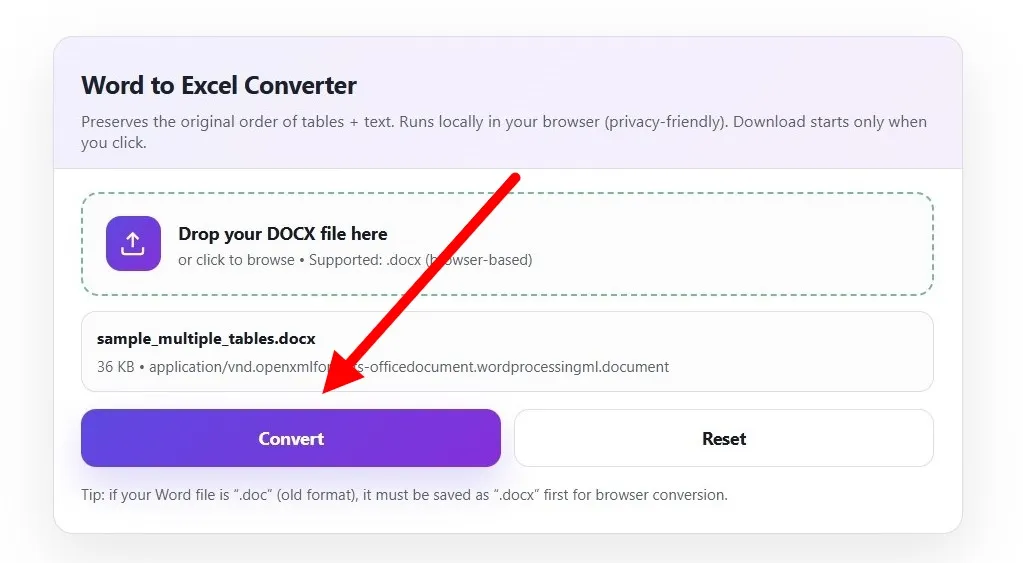
- Click Convert to start the process.
- The tool maps all tables, rows, and columns from Word into Excel while preserving layout and structure.
- Download and Open the Excel Spreadsheet
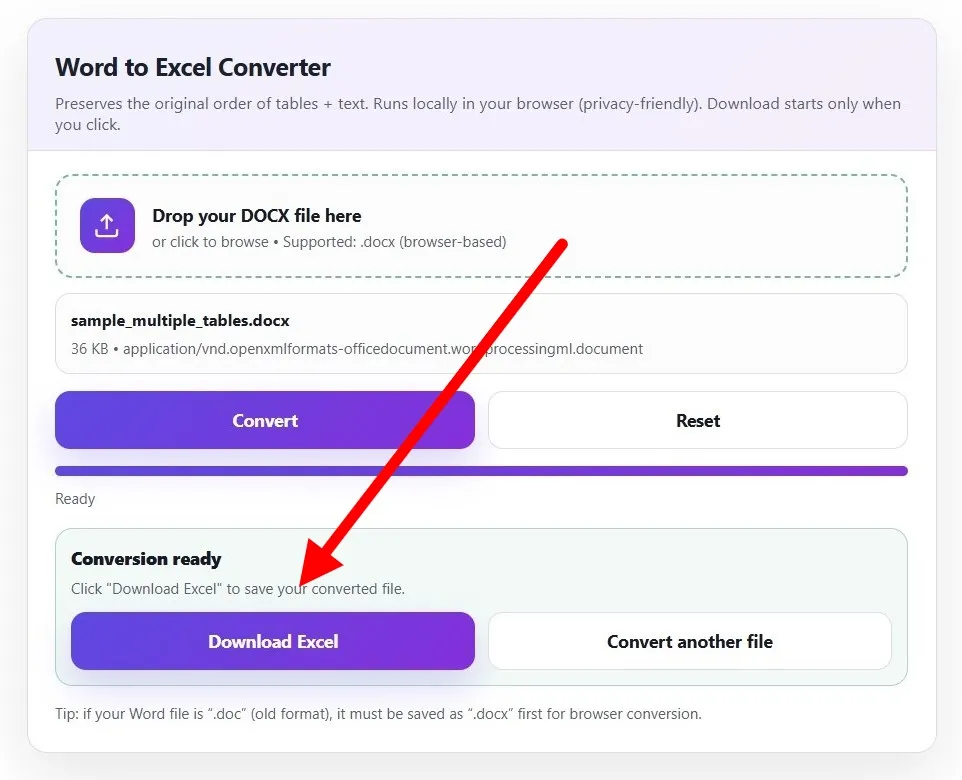
- Click Download Excel when the conversion is complete.
- The spreadsheet works in Excel, Google Sheets, or any compatible software.
- You can convert another file anytime by resetting the tool.
What You Can Do After Converting Word to Excel
Once your Word file is converted, your Excel spreadsheet is ready for immediate use. The tool preserves tables, rows, and text order, so you can work with your data efficiently.
Edit and Clean Data in Excel
Adjust cell values, remove unnecessary formatting, or organize rows and columns. Since the table structure is preserved, editing is fast and error-free.
Use Converted Tables for Calculations
Perform calculations, create summaries, or generate charts directly in Excel. Your original Word tables are mapped to accurate rows and columns, saving time on manual restructuring.
Open and Share Files in Google Sheets
Upload the converted Excel file to Google Sheets or other spreadsheet tools. You can collaborate, share, or integrate your data without losing formatting.
Common Use Cases for Word to Excel Conversion
Many users face challenges when moving data from Word to Excel. This tool solves those problems by keeping tables and text in order, so your spreadsheets are ready for analysis, reporting, or collaboration.
Converting Word Tables into Excel for Reports
Word tables often lose structure when copied manually. With this converter, tables transfer accurately to Excel, making it easier to generate monthly reports, project summaries, or departmental overviews without reformatting.
Turning Invoices and Financial Documents into Spreadsheets
Invoices, receipts, and other financial documents are easier to manage once converted. Rows, columns, and numerical data remain intact, so you can calculate totals, track expenses, or reconcile accounts without errors.
Moving Survey or Research Data from Word to Excel
Survey results or research data in Word can be difficult to manipulate. After conversion, all questions, responses, and tables are mapped to Excel rows and columns, allowing for sorting, filtering, and analysis instantly.
Reformatting Word Tables for Data Analysis
Complex Word tables often need cleaning before analysis. This tool preserves table structure, making it faster to adjust headings, apply formulas, or create charts in Excel without starting from scratch.
Why Word Doesn’t Convert Cleanly to Excel
Word is designed for document layout, with text, paragraphs, and tables formatted for reading, while Excel is built for data grids with rows and columns. Because of this difference, copying Word tables into Excel often causes misaligned columns, broken rows, or lost formatting.
Simple copy-paste can’t reliably preserve table structure, merged cells, or text order. That’s why a dedicated converter is useful: it ensures your Word tables transfer accurately into Excel, keeping the same layout, headings, and order intact — exactly as in the original document.
How This Tool Keeps Word Tables Structured
Maintaining the exact structure of a Word document in Excel can be tricky, but this tool handles it automatically. Every table, row, and column is transferred exactly as it appears, so your spreadsheet reflects the original layout without extra adjustments.
Preserving Rows, Columns, and Headings
The converter keeps all rows, columns, and headings in place. Table headers, subheadings, and content alignment remain intact, ensuring your data is ready for reporting, calculations, or further analysis without losing context or clarity.
Handling Merged Cells and Alignment
Merged cells, indentation, and spacing are maintained precisely. This means tables with combined cells or complex layouts in Word appear exactly the same in Excel, saving time and preventing errors that typically occur with copy-paste or manual reconstruction.
Tips to Get Better Word-to-Excel Results
Even when using a reliable converter, small adjustments in your Word document can improve the accuracy and readability of your Excel output. These tips help ensure your tables transfer cleanly and your spreadsheet remains organized.
Use Proper Tables Instead of Tabs or Spaces
Word documents often use tabs or spaces to align content, but these can break the structure when converted to Excel. Use actual Word tables whenever possible. Proper tables ensure that every row and column maps accurately in Excel, keeping your data organized and preventing misalignment.
Avoid Image-Only or Scanned Word Files
Conversion tools cannot extract text from images within Word files. If your document contains scanned content or embedded images instead of editable tables, convert them to editable text first. This guarantees that all rows, columns, and headings transfer correctly, preserving the original data structure.
Check Table Layout Before Uploading
Before conversion, review your Word tables for merged cells, inconsistent column widths, and hidden rows. Correcting these issues beforehand ensures the resulting Excel spreadsheet matches the original layout and reduces the need for post-conversion editing.
Limitations You Should Know
While this converter handles most Word documents flawlessly, certain file types may present challenges. Being aware of these limitations helps ensure accurate results.
- Image-based Word documents: If your Word file contains tables or text embedded as images, the converter cannot extract the data. Make sure your content is editable text or structured tables.
- Scanned files: Scanned documents require OCR to convert, which is not supported by this tool. Converting editable
.docxfiles ensures all data transfers accurately. - Very complex or multi-layout documents: Word files with multiple sections, nested tables, or irregular layouts may require minor adjustments in Excel after conversion. Reviewing tables beforehand improves accuracy.
These limitations are clearly defined to help you plan your conversion and ensure your Excel spreadsheet matches the original document with minimal post-processing.
Is This Word to Excel Converter Secure?
Your privacy and data safety are a top priority. This tool is designed to convert Word files directly in your browser, without uploading your content to any server.
Encrypted File Uploads
All file handling happens locally in your browser. No data leaves your device, and any temporary processing is encrypted to prevent unauthorized access.
Automatic File Deletion
Once the conversion is complete and you download your Excel file, no traces of your document remain. Files are never stored on servers or retained in the system.
No Human Access to Uploaded Files
Since the conversion runs entirely in your browser, no one — including the site administrators — can access your Word documents. Your data stays private and secure at all times.
Word to Excel Converter FAQs
How do I convert a Word file to Excel?
Upload your .docx file, click Convert, and then download the Excel spreadsheet once it’s ready. The original table structure is preserved.
Does this work with DOCX files?
Yes. Only .docx files are supported. Older .doc files must be saved as .docx before conversion.
Will table formatting stay intact?
Yes. Rows, columns, headings, merged cells, and text order remain exactly as in your Word document.
Can I convert Word to CSV instead of Excel?
No. This tool converts Word documents into Excel spreadsheets (XLSX). You can export Excel files to CSV after conversion.
Is this Word to Excel converter free?
Yes. The tool is completely free and runs entirely in your browser, with no software installation required.
How long does the conversion take?
Conversion is typically instant for most files. Larger or complex documents may take a few seconds to process.
Are my files stored on your servers?
No. All processing happens locally in your browser. Your files are never uploaded or stored on any server.
Can scanned Word documents be converted?
No. Scanned documents or image-based tables are not supported. Only editable .docx tables can be converted accurately.
Supported Word to Excel Conversions
This tool supports multiple Word-to-Excel conversion types, ensuring your data transfers accurately while maintaining structure and formatting.
Word File to Excel Spreadsheet
Entire Word documents, including all tables and text, can be converted into an Excel spreadsheet. Each row and column mirrors the original layout for seamless editing and analysis.
Word Table to Excel
Individual tables in a Word document are converted directly into Excel tables. This preserves headings, merged cells, and column alignment for ready-to-use spreadsheets.
DOCX to XLSX Conversion
The tool handles DOCX files and outputs XLSX spreadsheets, the standard format compatible with Excel, Google Sheets, and other spreadsheet software. Complex layouts remain intact, so no additional formatting is needed.